Recommended software #
Lectures #
No particular software is required for the lectures.
The exercises can be solved using web applications, for instance:
- the Haskell playground and
- the Java playground.
However, a proper code editor may be more comfortable.
Assignments #
For the assignments, you will need an IDE for Haskell and Java (possibly the same one). We provide detailed instructions below.
Before these, we briefly explain what a package manager is, why it can be useful, and how to install and use one.
Further explanations will be provided during the first lab (dedicated to software-related questions for this course).
Automated dependency management #
Definitions. A package is a program together with metadata. These metadata include the program’s name, version, release date, authors, licence and the names of its dependencies (together with their versions).
A software repository is a collection of packages that comply to the same format of metadata. A software repository (precisely, multiple copies of it) is generally hosted on the cloud.
A package manager is a program that runs on a user’s machine. It automates the installation, update and removal of packages from a software repository (or possibly several).
OS package manager #
Some package managers only depend on a specific OS. Notably, this is the preferred way to install software on Linux.
Examples. Widely used OS package managers include:
- apt for Debian and derivatives,
- dnf for Fedora and derivatives,
- pacman for Arch and derivatives,
- Homebrew for macOS,
- Chocolatey and Scoop for Windows.
Language-specific package manager #
Many programming languages have dedicated package managers.
Examples.
- Maven for Java,
- npm for Node.js (Javascript)
- pip for Python,
- NuGet for .NET (C#, F#, and Visual Basic)
- RubyGems for Ruby,
- CPAN for Perl
- CRAN for R,
- etc.
Other software repositories #
Some applications also have dedicated software repositories for plugins (and plugin managers to handle these plugins). For instance.
Examples
- The VSCode market place,
- CTAN for LateX,
- MELPA for Emacs,
- etc.
Other applications (such as zsh, vim or neovim) only have plugin managers, without a centralized software repository. These managers install plugins directly from hosts (e.g. GitHub repositories).
Benefits. Installing, updating and removing software via a package manager is often recommended.
In particular:
- the dependencies of a package are also installed (or it some cases updated or removed) transitively,
- the installation process often uses a default configuration and directory layout (environment variables, etc.) that facilitates interaction with other programs,
- the package manager can update all the programs that it manages, in a centralized way, thus avoiding problems related version compatibility (and more generally, dependency hell),
- a package manager prevents uninstalling a program if another depends on it.
Besides, the installation (or update or removal) procedure is often simpler, thus leaving less room for manual errors.
Example. Here is the full manual procedure to install Maven with the apt package manager (on Debian and derivatives):
apt install mavenand similarly with Homebrew (on macOS):
brew install mavenor with Chocolatey (on Windows):
choco install mavenIn comparison, the procedure to install Maven manually on Windows is more involved, thus more likely to introduce errors (trough inadvertence, or by following outdated instructions).
Warning (on Windows). The default and/or most frequent software installation instructions found on the web for Windows are typically manual. For programming-related software (especially open-source) we recommend looking first for a corresponding package on Chocolatey.
Example. As a (rather extreme) example, compare installing MinGW (to get the GCC compiler) with:
- this long procedure, or
- a simple command (with Chocolatey):
choco install mingw
Warning (on Windows). Package management is less mature and standardized on Windows than on Linux and macOS.
So in some cases, a manual installation is still preferred.
Installing an (OS) package manager #
On Linux #
A package manager (apt, dnf, pacman, etc.) should already be installed on your system.
On macOS #
Homebrew is the most commonly used package manager for macOS.
Installation. To install Homebrew:
Copy the command provided at this address.
Open a terminal, paste the command there and execute it (by pressing
Enter).Read and follow the instructions (displayed in the terminal) carefully!!
On Windows #
Chocolatey is a popular package manager for Windows.
Installation. To install Chocolatey:
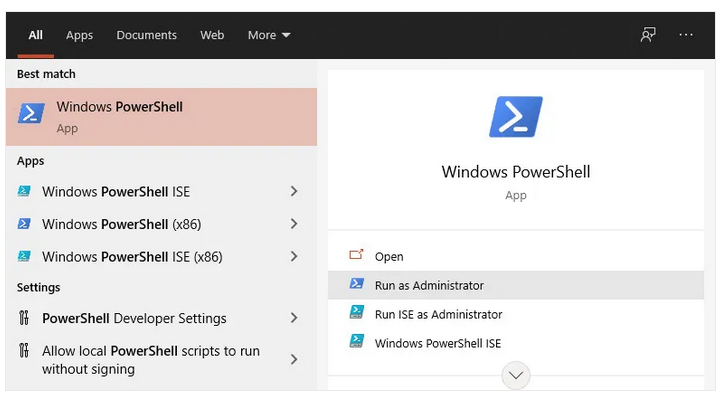
Open the Windows PowerShell as administrator:
Follow the installation instructions on this page.
Hint. In these instructions, “run” a command means:
- copy it,
- paste it to the PowerShell,
- press
Enter.
Installing a program with a package manager #
On Linux #
If you are on Linux, you most probably use a package manager already.
On macOS (with Homebrew) #
Example. To install a program with Homebrew:
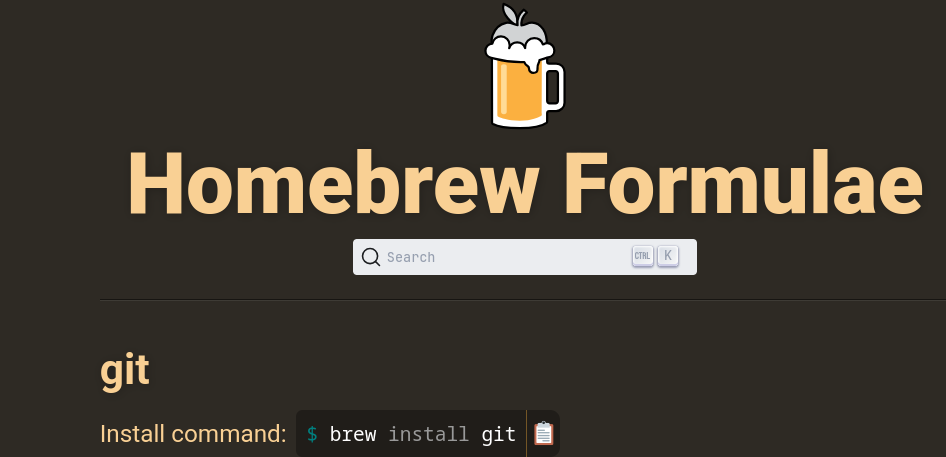
Use this page to search for the program that you want to install (for instance,
git).Copy the corresponding command (in this example,
brew install git):
Open a terminal, paste the command there and execute it (by pressing
Enter).Follow the instructions displayed in the terminal (if any).
On Window (with Chocolatey) #
Example. To install a program with Chocolatey:
Use this page to search for the program that you want to install (for instance,
git)Copy the corresponding command (in this example,
choco install git):
Open the Windows PowerShell as administrator:
Paste the command there and execute it (by pressing
Enter).Follow the instructions (if any, for instance accept to tun the installation scripts).
By default, most packages are installed in
C:\ProgramData\Chocolatey\lib, and an executable link is created inC:\ProgramData\Chocolatey\bin.

Installing software for this course #
Reminder. No software is required to follow the lectures.
The exercises can be solved using web applications, for instance:
- the Haskell playground and
- the Java playground.
However, a proper code editor may be more comfortable.
You will also need a code editor if you decide to do the assignments.
Java #
Java Development Kit (JDK) #
For the assignments, you will need a JDK (for instance OpenJDK) for Java 17 or later.
If you followed the course “Computer Programming” last semester, then you should have one already. Otherwise, to install a JDK:
- A package manager is often recommended. OS-specific commands are provided below.
- Alternatively, some editors (like VSCode on Windows and macOS) can come bundled with a JDK, whereas others (like IntelliJ IDEA) can help you download one.
Installing a JDK with a package manager.
on Windows (with Chocolatey).
choco install openjdkon macOS (with Homebrew).
brew install openjdkon Linux (as sudoer).
Debian and derivatives.
apt install openjdk-17-jdkDepending on your distribution (Debian, Ubuntu, Mint, Zorin OS, etc.), a more recent version that 17 may be available.
Arch and derivatives.
pacman -S jdk-openjdkFedora and derivatives. List available versions with:
dnf search openjdkThen
dnf install <openjdk-package-name>For instance
dnf install java-21-openjdk.x86_64
Maven #
You will need Maven to run the assignment’s tests on your machine.
The preferred way to install Maven is via a package manager. Details are provided below.
Alternatively, you can download and install it manually (this may require setting up and/or updating environment variables).
Installing Maven with a package manager.
on Window (with Chocolatey)
choco install mavenon macOS (with Homebrew).
brew install mavenon Linux (as sudoer).
Debian and derivatives.
apt install mavenArch and derivatives.
pacman -S mavenFedora and derivatives.
dnf install maven
Editor #
Popular editors/IDEs for Java include:
- IntelliJ IDEA,
- VSCode (or its open source version Code OSS),
- Eclipse
- NetBeans
VSCode (or sometimes its open source version Code OSS) can be installed via a package manager.
For the other three, we recommend following the publisher’s instructions.
Setting up VSCode for Java.
Click on the marketplace icon:
Search for the Extension Pack for Java.
Click on
Install.

Note. If you installed the open source version of VSCode, then you may not have access by default to the Microsoft VSCode marketplace. You can change this by editing a config file, as explained here.
Haskell #
Compiler and language server #
For the assignments, you will need:
- the Glasgow Haskell Compiler (GHC) and
- The Haskell Language Server (HLS).
There are two alternative ways to install them:
- with the GHCup installer, or
- via a package manager.
Warning. One of these two options is enough. If one does not work on your system, then try the other.
Both options have benefits and drawbacks:
| Benefits | Drawbacks | |
|---|---|---|
| Installation via GHCup | Integration with VSCode should be seamless. | These programs will not be managed by your package manager. On Windows, installing the installer requires an additional compatibility layer (MSYS2). |
| Installation via a package manager | These programs will be managed by your package manager. | You need to point VSCode to the location of the Haskell Language Server (as explained below). |
Warning. If you are using an Arch-based distribution, then the GHCup installer is recommended.
Warning. For some Debian-based distribution, the Haskell Language Server is not available as a package.
First option: install GHC and HLS via GHCup.
Copy the command provided at this address.
Open a terminal as a non-admin user (on Windows, simply click on Powershell).
Paste the command there and execute it (by pressing
Enter).Follow the instructions displayed in the terminal. You will prompted to make a few decisions. When asked whether the Haskell Language Server (HLS) should be installed, answer yes. For the other questions, the default option should be fine.
Close the terminal and reopen one.
Paste
ghcup tuiand pressEnter. This will open terminal user interface for the installer. Check that HLS and GHC are installed. If not, then install them (keybindings are provided at the bottom of the screen).
Second option: install GHC and HLS via a package manager.
on Window (with Chocolatey).
choco install ghc$\qquad$
choco install haskell-language-serveron macOS (with Homebrew).
brew install ghc$\qquad$
brew install haskell-language-serveron Linux (as sudoer).
Debian and derivatives. The Haskell Language Server (HLS) may or may not be available as a package, depending on your distribution. If not, then use GHCup instead to install both HLS and GHC.
Fedora and derivatives.
dnf install ghc$\qquad$
dnf install haskell-language-server
Editor #
VSCode (or its open source version Code OSS) is a popular choice to develop in Haskell.
For Haskell, you will need to:
- Install the Haskell extension,
- (optionally) install the Haskell run extension,
- if you installed HLS via a package manage, then point VSCode to its location.
Detailed instructions are provided below.
Installing the VSCode extension(s) for Haskell.
Click on the marketplace icon:
Search for the Haskell extension.
Click on
Install.Optionally, if you want to run your Haskell code with a click:
Click on the marketplace icon:
Search for the Haskell Run extension.
Click on
Install.Note. If you installed the open source version of VSCode, then you may not have access by default to the Microsoft marketplace. You can fix this by editing a config file, as explained here.
Pointing VSCode to HLS.
If you installed the Haskell Language Server (HLS) via GHCup, then VSCode should find it automatically.
If you installed it instead via a package manager, then you need to indicate where it is, as follows:
Press
Ctrl+Shift+P, and select (or search for) forPreferences: Open user settings.Click on
edit as JSON.Replace the line
"haskell.manageHLS": "GHCup",with
"haskell.serverExecutablePath": "<path to HLS>",where
<path to HLS>is the (absolute) path to the folder that contains HLS on your machine.on Linux and macOS. To retrieve the path to HLS, execute (in a terminal):
which haskell-language-serveron Windows. If you used Chocolatey to install HLS, then the path should be
C:\ProgramData\Chocolatey\binWarning. In a string, the character
\needs to be escaped.
For instance, if the path isC:\ProgramData\Chocolatey\binthen write
"haskell.serverExecutablePath": "C:\\ProgramData\\Chocolatey\\bin",